
Scary Computer Popups: What to Do in the First Minute
If your screen freezes with a scary virus warning and a phone number, do not panic. Recognize the signal, pause, and follow these safe steps to regain control.
FLORIDA FRAUD DEFENSE INITIATIVEFFDIFRAUD PREVENTIONSCAM AWARENESSPOPUP SCAMSSCAM LINKSSCAM PREVENTIONONLINE SAFETYPHISHINGHOME SECURITY
Friendly Tech Guide
4/9/20262 min read
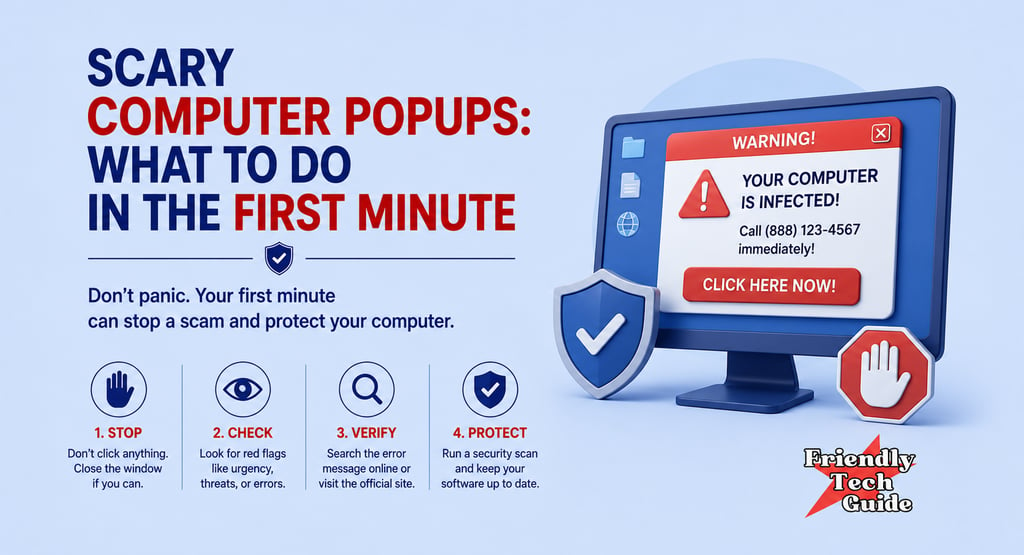
It happens fast. You are browsing the web when your screen suddenly fills with warnings, a loud sound may start playing, and a message tells you to call support immediately. Your browser may even look frozen.
That is exactly what the scam is designed to do: push you into panic before you have time to think.
If this happens, remember this sequence:
Pause. Do not call. Do not click. Close the browser safely.
Recognize the Signal
A pop-up that tells you to call a number right away is a common scam sign.
These warnings are often scare tactics meant to push you into a bad decision. The goal is to get you on the phone, get you to click, or get you to hand over remote access.
When you see one:
1) Do not call the phone number on the screen.
2) Do not click buttons inside the warning if you can avoid it.
3) Do not let anyone connect to your device remotely.
4) Do not enter payment information to “fix” the problem.
Regain Control of the Screen
Your first job is to get out of the bad page safely.
1) Try to close the browser normally.
2) If the browser will not respond, force-close the browser or restart your device.
3) When the browser reopens, avoid restoring the suspicious page if your browser offers to reopen old tabs.
The point is to break contact with the scam page before you do anything else.
If You Have Already Called, Clicked, or Paid
If you already interacted with the warning, move quickly.
1) Disconnect your device from the internet.
2) End any remote-access session immediately.
3) Change important passwords from a different trusted device, especially email, banking, and shopping accounts.
4) Contact your bank or card provider right away if you sent money or shared payment information.
5) Watch your accounts for unauthorized charges or login activity.
Check Your Device the Safe Way
After you are calm, check your system through a path you control.
On Windows, open Windows Security yourself and run a scan.
On Mac, install current software updates and use Apple’s built-in protections. If an app freezes and will not close, use the Mac force-quit tools or restart the device.
Do not use the phone number, link, or button from the warning screen to decide what to do next.
The One-Minute Rule
When a screen tries to scare you into acting immediately, slow the moment down.
If the message is real, you will still be able to deal with it through a trusted path you open yourself.
If it is a scam, that pause is what protects you.
If you found this information helpful, please forward it to someone who could benefit.
Disclaimer
Friendly Tech Guide provides general education and support. We are not a law firm, bank, or government agency. For legal or financial advice, contact a qualified professional. If you believe you are in immediate danger, call local law enforcement.
Sources
Personalized technical assistance at your convenience.
© 2025. All rights reserved.